To integrate Google and Canvas accounts, the most important thing is to make sure you integrate your Emerson google account, NOT your personal google account.
Note
ITG recommends using a regular shared Google Doc over Canvas and Google Collaborations. Any change to a Collaboration (adding someone, changing the title, etc.) causes Google Drive/Docs to send a notification. Documents created via Collaborations get saved to the top level of your My Drive folder, so they are easy to lose track of.
Steps to integrate services/accounts:
- If necessary, log out of personal Gmail.
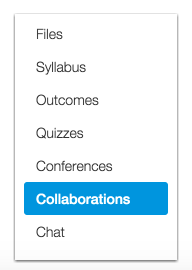
- In Course Navigation, click the Collaborations link.
-
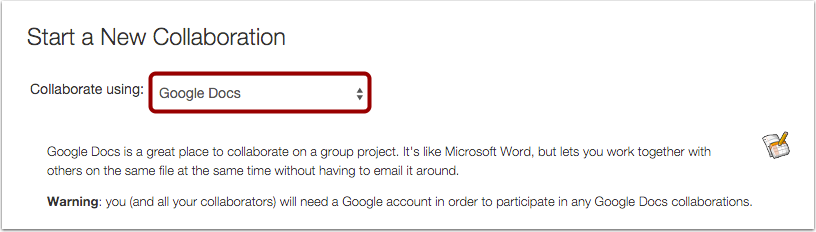
To start a new collaboration, click the drop-down menu and choose Google Docs for your new collaboration.
-
Each collaborator will need to authorize Canvas access their Google account to use Google Docs to collaborate. Click Authorize Google Drive Access and log into your Emerson Google drive.

-
Google will ask you:
- Go ahead and click continue.
- And that's it—you are done! Start collaborating!
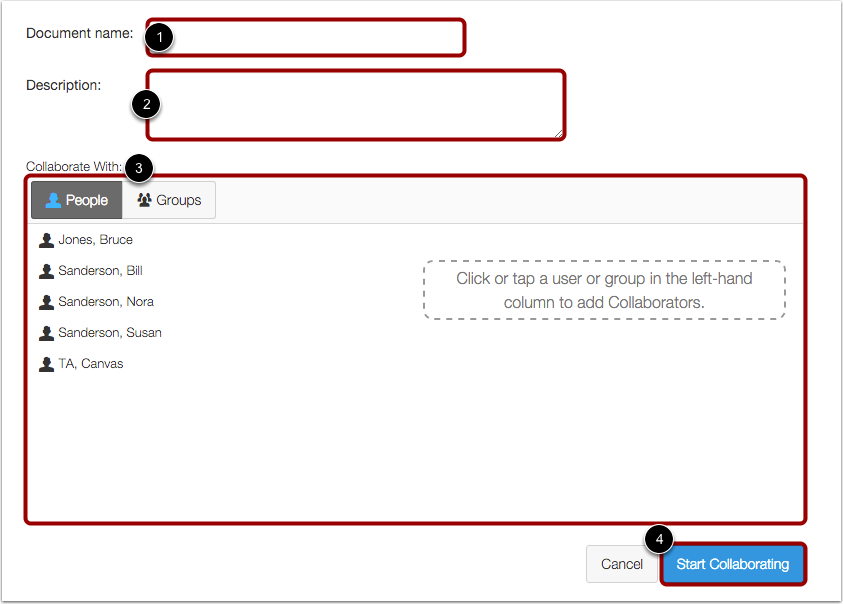
To create a collaboration document using Google Docs:
- Name the document.
- Create a description.
- Select collaborators.
- Click the Start Collaborating button.
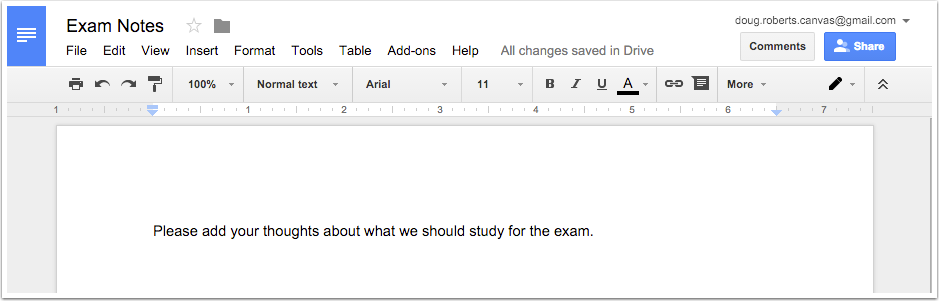
You can view the newly created document in a new browser window.
Another benefit of integrating Google Workspace for Education with Canvas is that you can now submit assignments via GoogleDocs! You can find out how in this Canvas Guide.
Images borrowed from Canvas Guides.